USB Screen Share - Phone to TV
Battery Stats SaverPersonalization
3.81.64K Reviews
- Version
- 1.1.6
- Installs
- 10.00M
- Age Rating
- Everyone
Screenshots
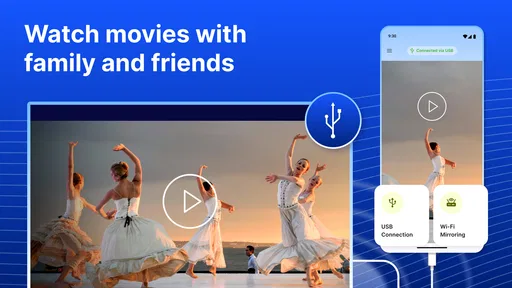
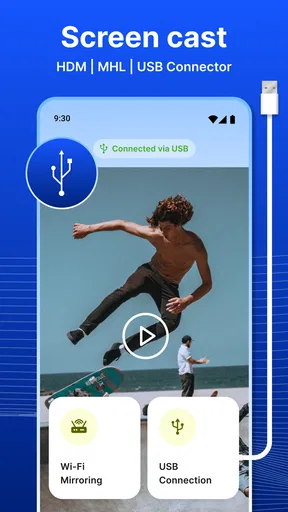
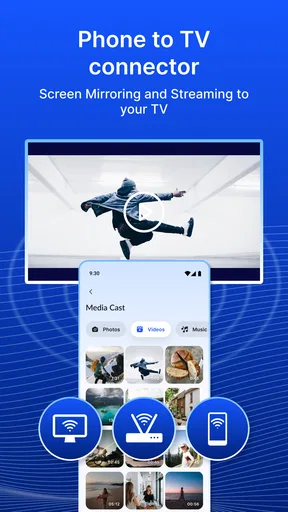
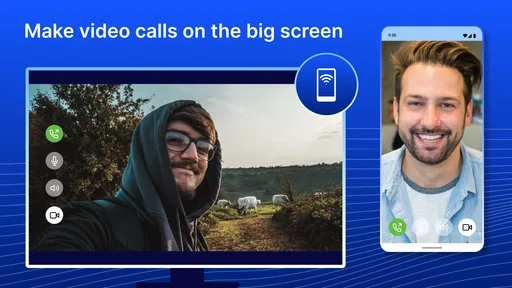
Our Review of USB Screen Share - Phone to TV
 Analysis by Appyee
I judge a screen-sharing app less by the novelty of seeing a phone on a TV once and more by whether it still helps after the first week. USB Screen Share - Phone to TV is aimed at a practical problem: making phone content easier to show on a larger screen. That can be handy when friends gather around photos, when I want to show a clip without passing my phone around, or when I need a bigger view for a task. Its appeal depends on a basic condition, though: the phone and television must work together in the way the app expects.
Getting Started with USB Screen Share
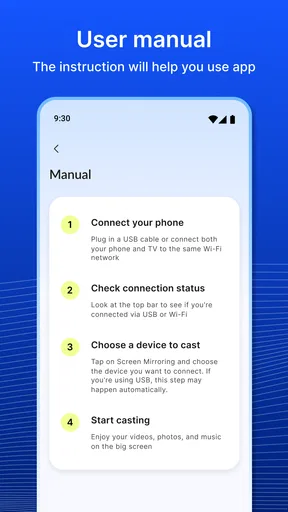
Diving right into it, setting up USB Screen Share - Phone to TV was a breeze. All you need is a USB cable and a compatible TV. As soon as you connect your phone to the TV, the app guides you through a simple setup process. I was seriously impressed by how user-friendly it was. Even for someone who's not very tech-savvy, getting everything up and running was straightforward.
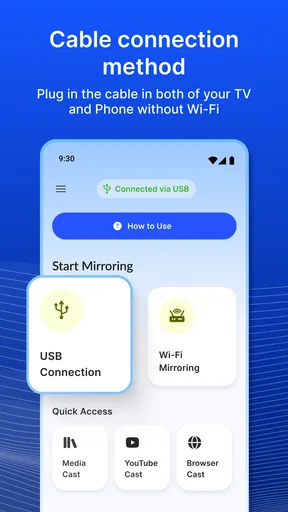
There's no need for Wi-Fi or Bluetooth, which is great if you’re in an area with a weak signal. You just plug in, follow the prompts, and before you know it, your phone's screen is mirrored on the TV. It’s like magic, but without the wand!
Features That Stand Out
One of the standout features of this app is its real-time screen mirroring. There’s virtually no lag, which is perfect for watching videos or playing games on a bigger screen. The clarity is top-notch, and it feels like having a mini home theater.
Another feature I love is the ability to share not just videos and photos, but also apps and games. This is especially fun when you want to level up your gaming experience by moving from a small screen to a big one. Plus, the app supports a wide range of file formats, so you’re not limited to just a few types of media.
And let’s not forget about the security measures. The app ensures your data is protected while sharing, which is a big plus in today’s digital age where privacy is a major concern.
The User Experience
Using USB Screen Share - Phone to TV feels incredibly intuitive. The interface is clean and minimalistic, which I greatly appreciate. There are no unnecessary bells and whistles to confuse you. It’s all about functionality, and it delivers that in spades.
One thing that caught my attention was the app’s ability to adjust the resolution based on the TV’s capabilities. This ensures the best possible viewing experience without any manual tweaks. It’s those little details that make a huge difference in user satisfaction.
For a first-week test, I would focus less on browsing menus and more on checking the actual path I plan to use: connect the phone, follow the app’s prompts, then confirm that the TV displays the content I want to share. A short clip and a few photos make a more useful trial than a quick glance at the home screen. If that routine works reliably with the cable and television available to me, the app has a clear role; if it does not, repeated setup attempts can quickly outweigh the convenience.
What About Compatibility?
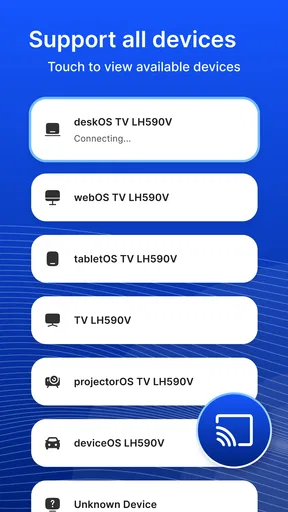
Compatibility is often a deal-breaker for many apps, but not this one. It supports a wide range of devices, both Android and iOS, which is fantastic. Just make sure your TV has a USB port and you're good to go. I tried it with a few different TVs, and it worked seamlessly each time.
If you're worried about older TV models, the app’s support team is quite responsive and helpful. They’re always ready to assist with any compatibility issues or questions you might have.
In practice, a USB port alone should not be treated as a guarantee that a television can display a phone’s screen. The connection has to support the kind of video output the setup needs, and phones can differ in what they send through a cable. I’d check the television and phone’s compatibility before planning a presentation or a movie night around this method. That small check is more useful than assuming that any cable that fits will do the job.
This is also where the choice between wired and wireless sharing becomes personal. A cable-based setup can be attractive when the local network is unreliable or when I want to avoid depending on Wi-Fi. Wireless casting, where supported, is often more convenient for moving around the room and starting a session without connecting a lead. The trade-off is that wireless options depend on compatible devices and a working network. I see this app as an option for a known, workable wired setup, not as a universal replacement for every TV’s built-in casting tools.
When It Fits Into Everyday Use
A realistic use for me would be visiting family with a phone full of recent holiday pictures. Instead of passing the phone from person to person, I could connect it to a compatible television and let everyone look together. The same approach can make a short how-to video easier to follow from across a room. It is a simple, occasional convenience rather than something I need to keep open all day.
For this kind of sharing, I’d prepare the content before connecting: choose the album or clip, close anything private, and check what will appear on the phone’s screen. Screen mirroring can show more than the one photo or video I intend to share, so notifications and unrelated apps may be visible too. That is a practical privacy habit, not a reason to avoid the app; it just makes a quick review of the screen worthwhile before other people are watching.
The same distinction matters for work. Showing a visual reference or a slide-like item informally can be useful, but I would not make this my only presentation plan unless I had already tested the exact phone, cable, and TV combination. A meeting is a poor time to troubleshoot a connection. If I need a dependable presentation workflow, a dedicated display adapter or the room’s established casting system may be a better fit.
Keeping It Useful After the Novelty
USB Screen Share is a personalization app from Battery Stats Saver, and its purpose is narrow enough that its lasting value comes from repeatable use, not from constant exploration. The app is free, with in-app purchases listed from $0.99 to $99.99 per item, so I would look carefully at any purchase prompt and decide whether it adds something I actually need. I would not pay simply because the first successful connection feels impressive; the key question is whether I expect to use this particular sharing method again.
With an average rating of 3.8 from around 76,000 ratings, it has attracted a large audience, though that score suggests experiences are not uniformly smooth. More than 10 million installs show that people have tried it, but neither a high install count nor a personal first success guarantees that it will suit every device combination. I’d treat compatibility as the deciding factor and my own repeat use as the measure of value.
The app is free to download and rated for Everyone. It was released on May 20, 2018, and its current version is 1.1.6, with Android 5.0 as the minimum operating system. Those details make it easy to check whether an older Android phone meets the stated baseline, but they do not remove the need to verify the connection itself. On iOS, I would pay particular attention to the device’s available wired display options before counting on a cable-based session.
To keep the process low-friction, I’d store a suitable cable with the phone or near the television I use most, rather than searching for one each time. I’d also test the full setup once before relying on it and remember which input or connection worked. That small bit of preparation turns a potentially fiddly novelty into a repeatable routine. If the cable is inconvenient to find, the TV’s input is confusing, or the phone needs repeated troubleshooting, the app may not earn a regular place in my habits.
Where Friction Can Build Up
The most important limitation is that “USB” does not automatically mean “screen mirroring.” A TV may have a USB socket intended for other purposes, and a phone may not output its screen through the cable being used. I would therefore avoid buying extra equipment until I know what the devices support. If a connection fails, checking compatibility and trying the app’s guided steps is a better first move than assuming the app itself can make unsupported hardware work.
There is also a difference between mirroring a phone and having a TV-native viewing experience. A mirrored screen follows the phone’s orientation and activity, and the phone remains part of the session. That can be perfectly fine for showing photos or a quick clip, but it is less hands-off than opening a streaming app directly on a smart TV. For long viewing sessions, the TV’s own app or a dedicated streaming device is usually the more comfortable choice.
Because the screen is shared, I would keep the phone close and avoid switching into messages or accounts I do not want displayed. I would also be realistic about using it for games: a large picture can make a game more enjoyable to watch, but the phone is still the control device, so this is not the same as playing on a console. Those small trade-offs are easy to overlook during the first successful demonstration and matter more once the app becomes part of a regular routine.
Final Thoughts
In a world where sharing content is key, USB Screen Share - Phone to TV is a game-changer. It's perfect for family gatherings, work presentations, or just enhancing your personal entertainment experience. The app does exactly what it promises, and it does it well.
If you’ve been looking for an easy and reliable way to project your phone’s screen onto a TV, I’d highly recommend giving this app a try. It’s made sharing memories and moments so much simpler and more enjoyable. So go ahead, download it, and see the magic for yourself!
My recommendation is strongest for someone who has a compatible phone and television, wants to share content occasionally, and prefers a direct cable-based setup to relying on a wireless network. It is less suited to anyone who expects every TV USB port to mirror a screen, needs a polished presentation system without a backup, or mainly wants to stream for hours without keeping a phone involved. For those cases, built-in TV apps, a compatible wireless casting option, or dedicated display hardware may be the more dependable choice.
After the first-week novelty fades, I’d keep it installed only if connecting the same devices remains straightforward and I actually use it for shared viewing. Its value is practical rather than ongoing: it can solve a specific “let’s all see this” moment, but it does not need to become part of every day. That is a fair place for a focused screen-sharing app to land, and I’d judge it by how often that moment comes up in my own home.
Verdict
Strengths of USB Screen Share - Phone to TV
- Easy setup with intuitive interface.
- Supports multiple video and audio formats.
- Seamless connection with minimal lag.
- Compatible with most smart TVs.
- No additional hardware required.
Limitations of USB Screen Share - Phone to TV
- Requires stable Wi-Fi for best performance.
- May drain phone battery quickly.
- Limited support for older phone models.
- Ads can interrupt the streaming experience.
- Occasional connectivity issues reported.
Other Releases by Battery Stats Saver
View All
Photo Lock App - Hide Pictures
Personalization4.6

All Deleted Messages Recovery
Communication4.2

Speak and Translate Languages
Communication4.7

Compass app - Accurate Compass
Maps & Navigation4.2
Similar Picks in This Category
View All
Microsoft SwiftKey AI Keyboard
SwiftKey4.3

Wallpapers
Google LLC4.1

Zedge™ Wallpapers & Ringtones
Zedge4.7

Yandex Browser with Alice AI
Direct Cursus Computer Systems Trading LLC4.3

Ringtone Maker:create ringtone
Big Bang Inc.4.7

Fonts Keyboard
Fonts Keyboard3.9
Frequently Asked Questions
What is USB Screen Share - Phone to TV?
USB Screen Share - Phone to TV is an app that allows users to mirror their smartphone's screen onto a TV using a USB connection. It's perfect for presentations, watching videos, or gaming on a larger screen without the need for wireless connectivity.
Which devices are compatible with USB Screen Share - Phone to TV?
The app is compatible with most Android devices running version 5.0 and above. It's essential to check if your TV supports USB input for screen mirroring. iOS devices are not supported at this time, so iPhone users will need to look for alternative solutions.
How does USB Screen Share - Phone to TV work?
Once the app is installed, connect your phone to the TV using a USB cable. Open the app and follow the on-screen instructions to enable screen mirroring. The app will guide you through the setup process, ensuring a seamless connection between your phone and TV.
Is there any noticeable lag while using USB Screen Share - Phone to TV?
The app is designed to minimize lag, providing a smooth mirroring experience. However, the performance can vary based on the quality of your USB cable and the processing power of your devices. For optimal performance, use a high-quality USB cable and ensure both devices are up to date.
Is USB Screen Share - Phone to TV free to use?
The basic version of USB Screen Share - Phone to TV is free and includes essential features for screen mirroring. There may be in-app purchases or a premium version available that offers additional features, such as enhanced resolution or advanced settings. Always check the app store for the latest pricing and feature information.
